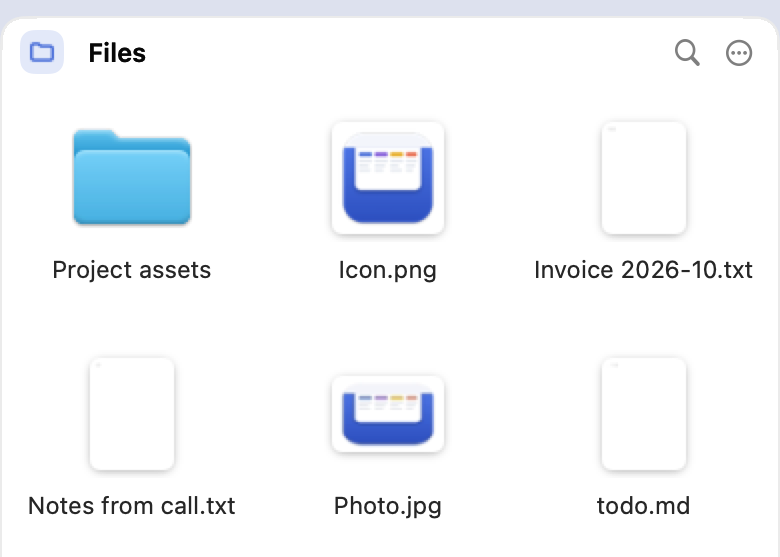
Files
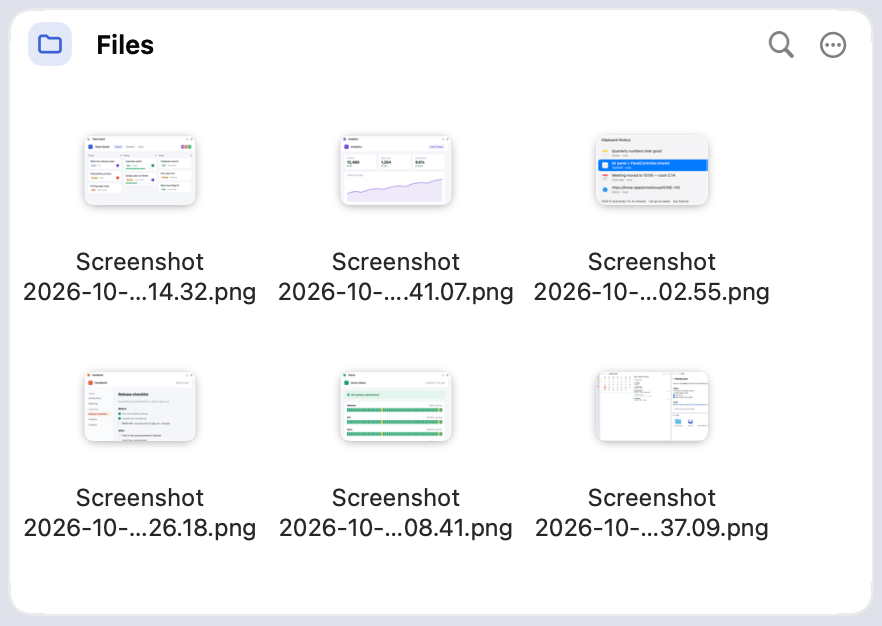
A shelf for what you're working on. Drop files in, drag them out where you need them. It's an ordinary folder, so keep it in Dropbox or iCloud Drive and it follows you to every Mac.
Coming to Mac in Q4 2026
Scroll down on the menu bar and Tuckaroo slides down with your files, clipboard history, notes and calendar. Scroll up and it's out of the way again.
Want it now? Ask Robin for the app. You'll get the latest test version.
Point anywhere on the menu bar and scroll down. Scroll up to put it away.
Prefer the keyboard? Choose any key combination in Settings.
Drag a file, link or text onto the menu bar and the panel opens for the drop.
Each one is a column in the panel. Show the ones you use, in the order you like. See every feature
A shelf for what you're working on. Drop files in, drag them out where you need them. It's an ordinary folder, so keep it in Dropbox or iCloud Drive and it follows you to every Mac.
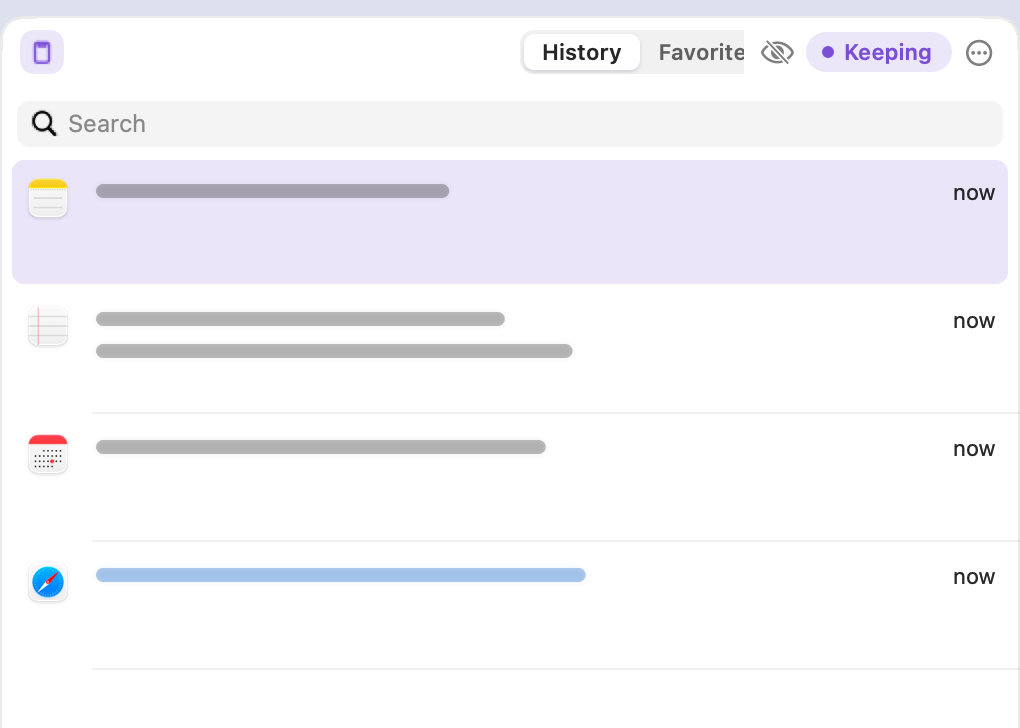
Everything you copy, kept and searchable. Clips stay hidden until you point at one, so sharing your screen never shares your clipboard. Press ⌘⇧V in any app to pick an older one.
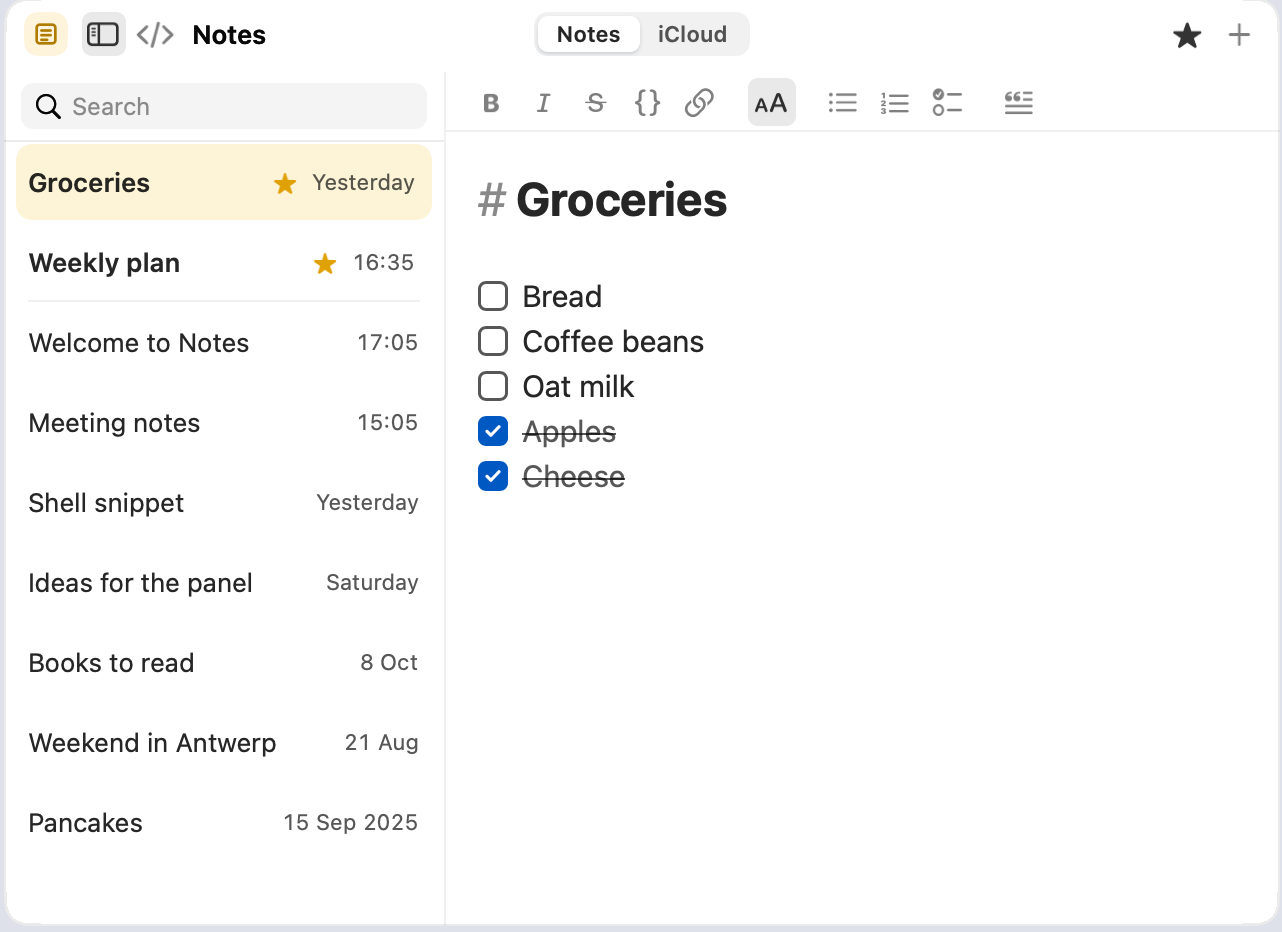
Markdown that looks finished while you type: headings, checklists, code. Search finds words in titles and text. Your notes are plain files in a folder you choose.
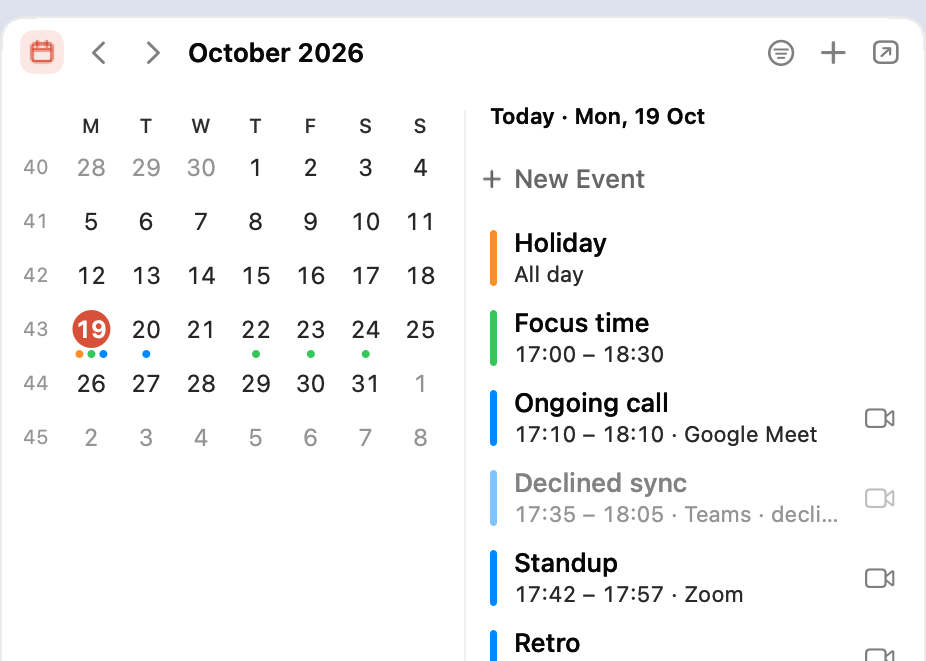
Your month and today's events from every calendar on your Mac. The next meeting counts down in the menu bar, and a minute before it starts Tuckaroo offers to join it.
Keep a team board, a status page or a dashboard one scroll away. Pages stay signed in, and links open in your own browser.


Drag a card onto another to swap them, or onto an edge to split. Make any card wider or taller; there is no fixed grid.


A dashed card shows where it lands before you let go.
Make one card wider or taller; its neighbours follow. Double-click a gap to even out the two beside it, shift-double-click for its whole row.
Every combination of cards keeps its own layout.
Small things Tuckaroo does for you, without opening the panel.

The next meeting waits next to the Tuckaroo icon: click it to join the call. A minute before it starts, a small card offers to join, without taking the keyboard from what you're doing.

Hold ⌘⇧ and tap V to step back through what you copied. Let go and it's pasted right where you are.
Tuckaroo's notes are plain files. A second tab in the Notes card shows the app you already use, signed in.
Pick the soft colour behind the cards (Settings takes it too), cards or edge to edge, light or dark. Try it:


Edge to edge shows the columns on the plain backdrop, so the colour is for Cards.
A light wash behind the cards, or the plain macOS backdrop.
Rounded cards with room between them, or columns side by side with fine lines.
Auto follows your Mac's appearance.
A profile keeps which columns are on, how they're arranged and how tall the panel is. One for the laptop, one for the big display, one for writing. Pick one in the sidebar, or let the screen decide.


Up to five profiles sit one under the other at the top of the sidebar. Click one, or press ⌃⇥ for the next. Drag them into your own order.
Click the + under them, give it a name and tick the columns it shows. It's in use right away.
Say from which screen width a profile is used: Laptop on the MacBook, Studio as soon as the big display is on.
Make Default your own. One reset brings back the standard panel, whatever you changed.
Drag a column out of the panel and it stays open as a window, while the panel slides away. Drag it back to dock it.


A floating column stays above the panel, so you can always drag it back in.
Each profile remembers its floating windows and where you left them.
Over the panel a dashed card shows where it docks; the other columns make room.
Built for macOS, so it feels like part of your Mac. Your files, notes and clipboard history stay on your Mac.
Small set-ups that make the panel even handier.
Tip
Give your screenshots a folder of their own and make it your Files folder. Every screenshot lands in the panel, your desktop stays clean, and you drag it straight into a chat, an email or a document.
Move the notes folder to iCloud Drive or Dropbox (Settings → Notes → Change). They're plain Markdown files, so any editor opens them too.
Star a clip and it stays in Favorites: your address, a sign-off, the link you share every week.
Point your browser's download folder at your Files folder. What you download is waiting in the panel, not lost in Downloads.
Before a meeting, drag the Notes column out of the panel. It stays open as a window of its own while you talk.
Clips stay blurred until you point at one, so nobody reads along. Pause the history before you copy something private.
Put code between ``` lines with its language, like ```swift. It gets colours as in Xcode, and a Copy button.
Launching Q4 2026
Tuckaroo is in its last stretch. The list opens with the beta, with an early-bird price for people on it. Until then, ask Robin for the latest test version.
Planned price
$24 one-time · less for the list
Want it now? Ask Robin for the app. You'll get the latest test version.
In Q4 2026, before the end of the year. People on the list hear first and get the early-bird price.
No. It will be a one-time purchase for all your own Macs, with free updates for version 1.
In ordinary folders on your Mac. Pick a folder in Dropbox or iCloud Drive to have the same files and notes on every Mac.
Every calendar your Mac's Calendar app knows: iCloud, Google, Exchange and more. You choose which ones appear.
Not by accident. Clips in the panel stay hidden until you point at one, and copies from password managers are never saved to disk.
Yes. Next to Tuckaroo's own notes, a second tab shows iCloud Notes, Google Keep, Notion, Todoist, Microsoft To Do, TickTick, Evernote or any page you choose.
Yes, AI helped write the code. Every decision about what Tuckaroo does and how it looks is mine, and I test every build by hand. There's no AI in the app itself: your files, notes and clipboard stay on your Mac.
A Mac with macOS 13 Ventura or later.
All 55 features, and what each one does.
| Opening the panel | |
|---|---|
| Scroll on the menu bar | Point anywhere on the menu bar and scroll down: the panel slides down. Scroll up and it is out of the way again. |
| Wait or hold a key | Rest the pointer at the top of the screen for a moment, or hold a key such as ⌥ there. Both are optional, in Settings. |
| Your own shortcut | Open or close the panel from any app with a key combination you pick. |
| Drag onto the menu bar | Drag a file, an image, a link or text to the top of the screen and the panel opens, ready for the drop. |
| On every screen | It opens on the screen your pointer is on, as high as you like: drag its bottom edge. |
| Goes away by itself | Move away and it tucks itself back after a second; Esc or clicking another app closes it at once, and the app you were in stays in front. |
| Inverted scrolling | For mice whose own driver reverses the scroll direction, so pulling down still feels like pulling down. |
| Layout and look | |
| Columns or free layout | Columns side by side, or cards stacked and split as deep as you like. They always fill the panel, without a grid. |
| Drag to rearrange | Drag a card by its header: a dashed card shows where it lands and the others make room. On another card's middle the two swap. |
| Resize and even out | Drag the gaps between cards; double-click a gap to make the two beside it equal, shift-double-click for the whole row or column. |
| Floating windows | Drag a column out of the panel and it stays open as a window of its own; drag it back to dock it. |
| Profiles | Named arrangements of the panel, such as Laptop and Desk, picked by hand or by the width of the screen. Arranging the panel changes the profile in use; Default can always be reset to the standard panel. |
| Profiles in the sidebar | Up to five profiles show their letters one under the other; a click switches, a drag puts them in your order (in Settings too). With more, or a low panel, one button shows them all. |
| New profile in a moment | The + under the letters asks for a name, a screen width if you like, and which columns it shows. |
| Switch with the keyboard | ⌃⇥ and ⌃⇧⇥ go to the next and previous profile; the name shows for a moment. Leave out the ones you rarely use. |
| Colour, style and theme | Six soft colours behind the cards (or none), cards or edge to edge, light, dark or following your Mac. Settings takes the colour too. |
| Settings in one file | Export your profiles, pages, shortcuts and the rest to a file, and import it on another Mac. |
| Files | |
| An ordinary folder | Any folder you choose, so it can live in Dropbox or iCloud Drive and follow you to every Mac. |
| Drop anything in | Files and folders (moved or copied with Finder's rules), images from your browser, links (saved as a bookmark, or downloaded when they point to a file) and text (saved as a snippet). |
| Drag out anywhere | Drag files into a chat, an email or a document. They stay in place while you drag, as in Finder. |
| Folders in the column | A folder opens right in the column, with a path above it back to the top (⌘↑). Or let folders open in Finder. |
| Quick Look and more | Space for Quick Look, Return to rename, ⌘⌫ to move to the Trash, plus New Folder, Compress, Open With and Show in Finder. |
| Icons or a list | Choose the icon size, sort by name, date, kind or size, and keep folders on top. |
| Search | Narrow the folder down as you type. |
| Selection as in Finder | Click, ⇧-click, ⌘-click, drag a selection rectangle from the gaps, or use the arrow keys. |
| Notes | |
| Plain Markdown files | One file per note in a folder you choose; .md and .txt files open too. Nothing is locked into an app. |
| Live preview | Headings, lists, checklists, quotes and code blocks while it stays plain text underneath. |
| Code in colour | Code blocks get syntax colours as in Xcode (Swift, JavaScript, Python, shell, CSS, HTML, SQL and more) and a Copy button. |
| Formatting bar | Bold, italic, headings, lists, checklists, links and quotes from a small bar above the note, or with the keys you know from Apple Notes (⌘B, ⌘I, ⇧⌘L). |
| Checklists | Click to tick. Ticked items move below the open ones, and back up when you untick them. |
| Lists that behave | Return goes on with a list and ends it on an empty item. Backspace takes a bullet or checkbox away, Tab nests. |
| Reorder list items | Drag an item by its grip, with the items under it, or use ⌥↑ and ⌥↓. |
| Favourites | Star a note to keep it at the top, in your own order. |
| Search everything | Titles and text, every word in any order, accents ignored. The words are highlighted. |
| List beside the note | In a wide column the list sits next to the open note. |
| Styled or plain | ⇧⌘M switches between the styled view and the plain Markdown. |
| Your notes app in a tab | A tab next to your notes shows the app you already use: iCloud Notes, iCloud Reminders, Google Keep, Notion, Todoist, Microsoft To Do, TickTick, Evernote or any page. |
| Clipboard | |
| History | Everything you copy, with the app it came from and when. Click a clip to copy it again. |
| Favourites | Star clips you paste often: your address, a sign-off, a link you share every week. |
| Paste from your history anywhere | Hold ⌘⇧ and tap V to step back through what you copied; let go and it is pasted where you are. |
| Hidden while you share your screen | Clips stay blurred until you point at one, so nobody reads along. |
| Pause | Stop keeping copies for a while, before you copy something private. |
| Sensitive apps | Copies from password managers are shown locked and never saved to disk. Leave out any app you like. |
| Edit and search | Edit the current clip, search the history, and drag clips into other apps. Images and colours show as they are. |
| Calendar | |
| Month and day | A month with week numbers and a dot per calendar, and the day's events beside or below it. |
| Next meeting in the menu bar | “Standup in 12 min”, then “25 min left”. Click to join the call. Pick which calendars count, and whether only video calls do. |
| Join reminder | A minute before an online meeting, a small card offers to join, without taking the keyboard. |
| New events, fast | A small form: type times the way you say them (10.30, 1030, 9 am) or pick them by the quarter hour, repeat, calendar and video link. |
| Change, delete or open | Click an event to change it, or open it in Calendar. Repeating events ask whether it is for this one or all of them. |
| Calendars to show | Show or hide calendars from the header, each in its colour. |
| Pages | |
| Any website as a column | Your board, a status page or your webmail, signed in and a scroll away, with its icon in the sidebar. |
| Groups with tabs | Several pages in one column, with a tab each. Drag tabs like a browser's: to reorder, or out to a column of their own. Hold ⌘ to drop a page onto another as a tab. |
| Add with the + | The + below the pages in the sidebar adds one, as a column or as a tab next to another. |
| Sign-ins that work | Sign-in pages stay in the column; other links open in your browser. |
| Only runs when shown | A hidden page uses no memory or battery. |
| On your Mac | |
| Shortcuts you can change | Every key in Settings → Shortcuts: record a new one, turn one off or go back to the standard keys. |
| Services menu | New Note from selected text, and Copy, Move or Create Alias to your Files folder, from any app. |
| AppleScript | Toggle the panel or create a note from a script or a Shortcut. |
| Open at login | Starts with your Mac and waits under the menu bar. |
| Private by design | Files, notes and clipboard history stay on your Mac. Calendar access is only asked for when you allow it. |
| Apple silicon and Intel | One app for both, from macOS 13 on. |